> For the complete documentation index, see [llms.txt](https://docs.besmart.software/llms.txt). Markdown versions of documentation pages are available by appending `.md` to page URLs; this page is available as [Markdown](https://docs.besmart.software/3d-modeling-and-design/clt-panels/wall-wood-framing/framing-configuration/wall-framing.md).
# Wall Framing
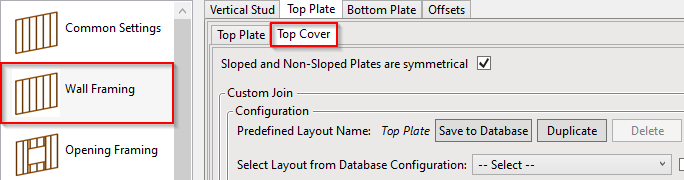
**Framing Configuration** may be found in two locations:

or:

### Wall Framing

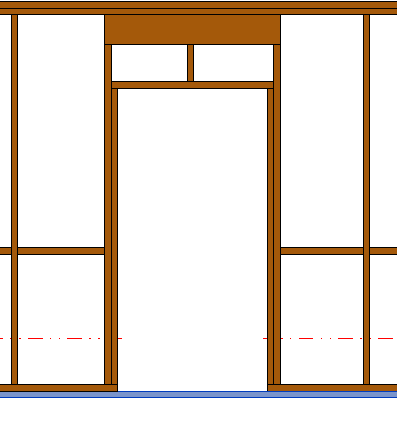
**Wall Framing** – here you can control regular studs (**Vertical Stud** tab), top (**Top Plate** tab) plates and bottom (**Bottom Plate** tab) plates:

### Add Studs

**Add Studs –** adds studs with rules listed below to the frame. The frame can be created without studs, just using, for example, horizontal elements.
### Align with Project Base Point

**Align with Project Base Point –** allows studs to be positioned not only in relation to each other but according to Revit gridlines.
Studs are positioned on the gridlines – and where necessary to fill in gaps or form intersections – so that they always match up across a corridor or room.
Notice how the studs are spaced according to the grid:

First step – unclip the state of the Revit **Project Base Point** and move it to the needed position:

For more convenience, switch on Revit **Work Plane** and move it to the **Project Base Point**. It will help you to understand if the studs or joists are created in the right position:

Turn on **Align with Project Base Point** in the **Framing Configuration** dialog:

Frame the walls, floors, or roof:

In the case you need to relocate the frame, just move the **Project Base Point** to the new position and update the frame!
### Stud Spacing and First/Last Spacing

**Stud Spacing** – defines the distance between the studs.

**First/Last Spacing** – defines common stud offset. Offset direction can be defined either from the first or the last, or both last studs. **First/Last Spacing** is dependent on the exterior side of wall as shown below. The beginning of the armament starts from the left side looking from the exterior side of a wall.

**First/Last Spacing** – first spacing will be on the side of the left side, and last on the right side.

### Custom Join

**Custom Join** – is a multi-functional dialog where user can define rules for studs including size, count, position, rotation, spacing, alignment etc. All these rules can be saved and used in other framing configurations or shared with other users. This type of dialog is used frequently in our products, so here you can find [**Custom Join detailed description**](/3d-modeling-and-design/wood-framing/common/wood-metal-framing/custom-join.md)
### Sloped and Non-Sloped Plates are symmetrical

**Sloped and Non-Sloped Plates are symmetrical** – define if top/bottom plates should be the same for sloped and non sloped plates.
*Sloped top plates:*

*Non-sloped bottom plates:*

### Cut Type

**Cut Type –** select top/bottom plate cutting type.
*Example: when **Plate Cut Studs** is selected:*

### Number of Elements not Cut
**Number of Elements not Cut** – if there is at least one plate, you can cut it or leave it as a whole.
### Top Cover/Bottom Pad
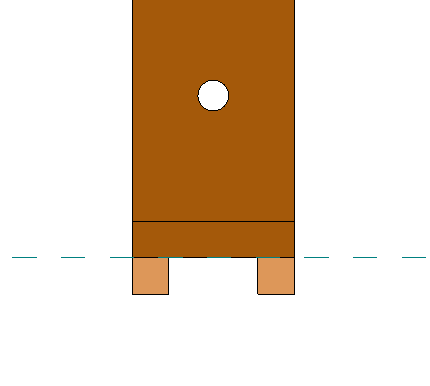
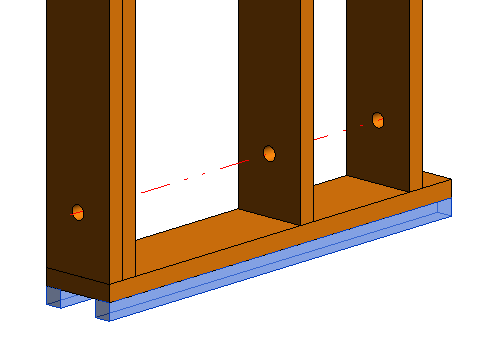
**Top Cover**/**Bottom Pad** will be added above/below the main frame.
*Section view:*
*Example with the older versions. Note 1:*
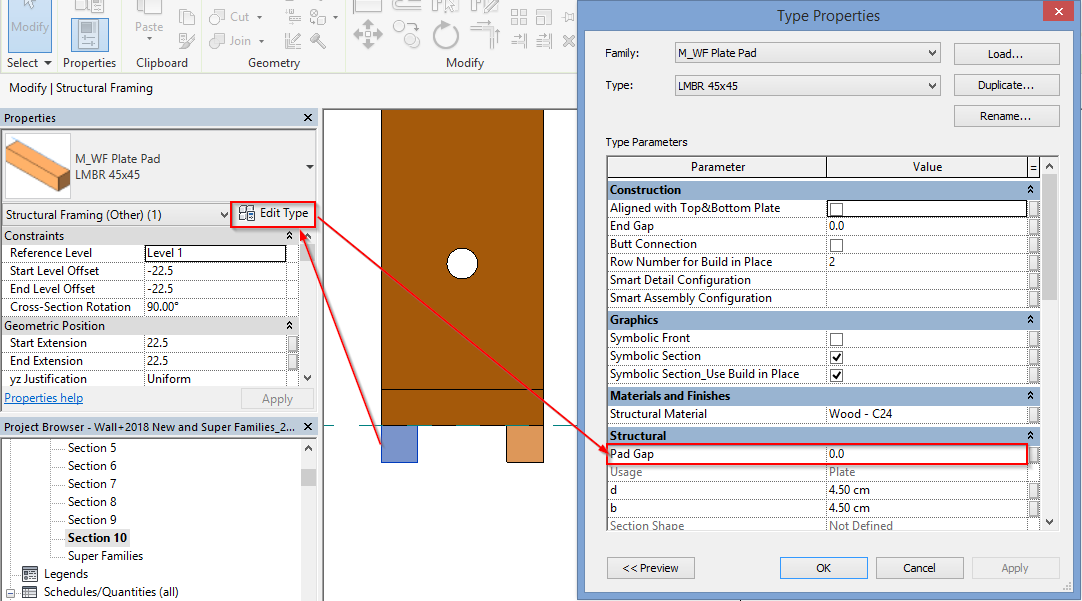
*If **I\_WF Plate Pad.rfa** (in Imperial projects) or **M\_WF Plate Pad.rfa** (in Metric projects) family is used and pad elements should be created with exact sizes, then pay attention to the type parameter **Pad Gap = 0**. **Pad Gap** is the gap between pad elements.*
*Example with the older versions. Note 2:*
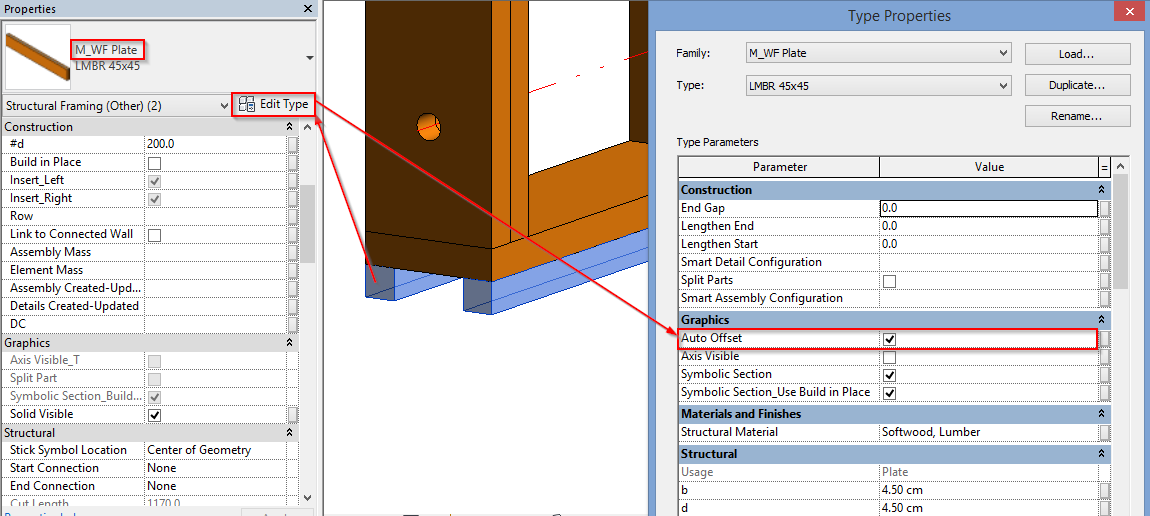
*If **I\_WF Plate.rfa** (in Imperial projects) or **M\_WF Plate.rfa** (in Metric projects) family is used, then make sure the type parameter **Auto Offset** is switched ON.*
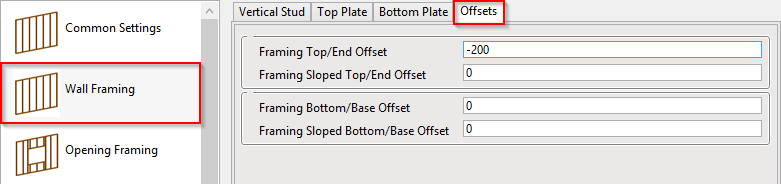
#### Offsets
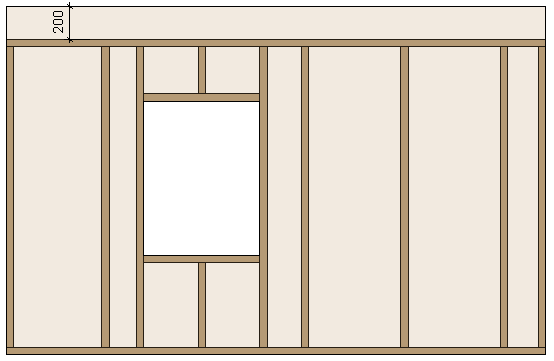
**Offset** – frame offsets from wall top or bottom.
---
# Agent Instructions
This documentation is published with GitBook. GitBook is the documentation platform designed so that both humans and AI agents can read, navigate, and reason over technical content effectively. Learn more at gitbook.com.
## Querying This Documentation
If you need additional information that is not directly available in this page, you can query the documentation by asking a question.
Perform an HTTP GET request on the following URL with the `ask` and `goal` query parameters:
```
GET https://docs.besmart.software/3d-modeling-and-design/clt-panels/wall-wood-framing/framing-configuration/wall-framing.md?ask=&goal=
```
`ask` is the immediate question: it should be specific, self-contained, and written in natural language.
`goal` is what the user is ultimately trying to achieve, the reason they need the answer. Sharing it helps GitBook give you a better, more relevant answer. A goal is most helpful when it describes the outcome the user wants rather than restating the question. For example, with `ask=how do I create an API token`, a goal like `automate deployments from our CI pipeline` lets GitBook tailor the answer to that use case.
The response will contain a direct answer to the question and relevant excerpts and sources from the documentation.
Use this mechanism when the answer is not explicitly present in the current page, you need clarification or additional context, or you want to retrieve related documentation sections.