> For the complete documentation index, see [llms.txt](https://docs.besmart.software/llms.txt). Markdown versions of documentation pages are available by appending `.md` to page URLs; this page is available as [Markdown](https://docs.besmart.software/3d-modeling-and-design/clt-panels/wall-wood-framing/framing-configuration/opening-framing/edit-window-window-join-framing-or-window-door-join-framing.md).
# Edit Window/Window Join Framing or Window/Door Join Framing
**Framing Configuration** may be found in two locations:

or:

### Window – Window Join Framing and Window – Door Join Framing
**Window – Window Join Framing** and **Window – Door Join Framing** configuration settings are used to predefine Left, Right, Middle, and Center Top or Bottom Trimmers and Cripples. Settings are saved under separate configuration name and can be adjusted for different join sizes (From – To).


*Example: **From =** 0, **To** = 180. If the distance between openings is smaller than 180, then the openings will be joined and the trimmers or cripples will be modified with **Edit Configuration**.*

Examples with complex joins:


### Edit Configuration
In order to edit, create new, rename, or delete opening framing configuration, you have to click **Edit Configurations** for the structural or non-structural walls:

Default configurations will come together with the software. Default path to opening configurations is:
*C:\Users\user name\AppData\Roaming\Tools 4 Revit\Wall+(version) Configurations\Framing Configurations\Metric or Imperial\custom configuration name\WindowWindowJoins*
It saves all the settings of trimmers, cripples that are listed down below in the dialog:

### Trimmers

**Include Opening Side Offset** – controls whether or not the joined opening should have offsets around the opening, which come from single opening settings **Offsets**.
There are common settings for trimmers where you can predefine the type and automatically define the depth by layer thickness. With **Use this Type for all Trimmers** you can automatically change the selected type for all left, right, middle, or center trimmers.

Here you can control **Left** and **Right** trimmers:

Left and Right positions from external side:

Here you can control **Middle** and **Center** trimmers:

**Middle** trimmers will be added equidistant from left and right trimmers:

**Center** trimmers will be added equidistant from left and right openings:

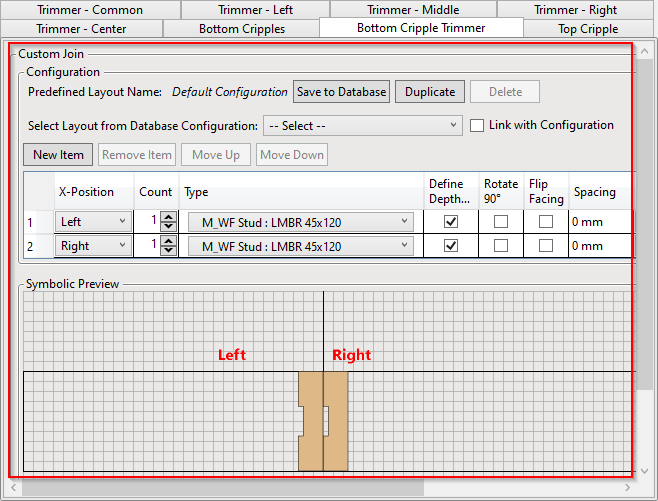
Here you can control **Bottom Cripple Trimmer**:

*Example: Number of Bottom Trimmer Studs/Joists = 1:*

Here you can control **Top Cripples**:


{% hint style="info" %}
**Note:** ***Top/Bottom Cripples** will work in joined windows if **Automatically Align Opening Cripples with Studs** is switched OFF near **Common Settings**. If it is ticked ON, then the cripples will be aligned with the main framing studs.*
{% endhint %}

### Custom Join
**Custom Join** – is a multi-functional dialog where user can define rules for joins including size, count, position, rotation, spacing, alignment etc. All these rules can be saved and used in other framing configurations or shared with other users. This type of dialog is used frequently in our products, so [here you can read more about **Custom Join.**](/3d-modeling-and-design/wood-framing/common/wood-metal-framing/custom-join.md)
---
# Agent Instructions
This documentation is published with GitBook. GitBook is the documentation platform designed so that both humans and AI agents can read, navigate, and reason over technical content effectively. Learn more at gitbook.com.
## Querying This Documentation
If you need additional information that is not directly available in this page, you can query the documentation dynamically by asking a question.
Perform an HTTP GET request on the current page URL with the `ask` query parameter, and the optional `goal` query parameter:
```
GET https://docs.besmart.software/3d-modeling-and-design/clt-panels/wall-wood-framing/framing-configuration/opening-framing/edit-window-window-join-framing-or-window-door-join-framing.md?ask=&goal=
```
`ask` is the immediate question: it should be specific, self-contained, and written in natural language.
`goal` is optional and describes the broader end goal you are ultimately trying to accomplish on behalf of the user. GitBook uses it to tailor the answer towards what is most useful for that goal.
The response will contain a direct answer to the question and relevant excerpts and sources from the documentation.
Use this mechanism when the answer is not explicitly present in the current page, you need clarification or additional context, or you want to retrieve related documentation sections.