> For the complete documentation index, see [llms.txt](https://docs.besmart.software/llms.txt). Markdown versions of documentation pages are available by appending `.md` to page URLs; this page is available as [Markdown](https://docs.besmart.software/3d-modeling-and-design/archive/wood-framing-work-in-progress/wall-wood-framing/framing-configuration/l-t-v-end-connections.md).
# L, T, V, End Connections
**Framing Configuration** may be found in two locations:

or:

1. Choose **Framing Configuration** from **Wall+** menu.
2. Choose **Configuration Type** that corresponds to framing layer of the wall.
3. Select **L Connection**, **End Connection**, **V Connection** or **T Connection**.

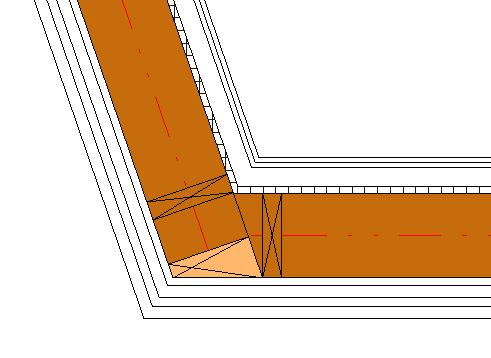
**L Connections**, **End Connections**, and **T Connections** are supplemented with options that bring further flexibility for predefining outer corners, B (Butt) outer corners, inner corners, or B (Butt) inner corners.

**Wall+** recognizes inner and outer corners so that you can adjust different joins. It gives you more flexibility in modeling and easily handles complex situations:

*Example with inner corner: You can predefine and change Butt connections*

### Framing End Extension

**Framing End Extension** - makes frame offset from the wall connection.

### Lengthen Top/Bottom Plates

**Lengthen Top/Bottom Plates** – makes top and bottom plate offset from the wall connection.

### Split or Shorten up to Stud

**Split or Shorten up to Stud** – splits or makes the top/bottom plates shorter.
**Up to Stud –** select the number of the stud where the top/bottom plates should be split or shortened.
*E.g Bottom plates are split at the second from the right stud:*

*E.g. Bottom plate is split at the third stud from the right.*

### Build in Place and Link to Connected Wall

**Build in Place** – writes Yes/No information into the plate instance parameter if plate is build-in-place or is prefabricated with the whole wall frame.
**Link to Connected Wall** – option if the plate is near a wall corner and such an element should be prefabricated and connected to the connecting wall.
A plate like this will have **Link to Connected Wall** or **Build in Place** parameter switched ON:

### Custom Join

**Custom Join** – is a multi-functional dialog where user can define rules for joins including size, count, position, rotation, spacing, alignment etc. All these rules can be saved and used in other framing configurations or shared with other users. This type of dialog is used frequently in our products, so [here you can read more about **Custom Join.**](/3d-modeling-and-design/wood-framing/common/wood-metal-framing/custom-join.md)
Default path to database with join configurations is:
*C:\Users\user name\AppData\Roaming\Tools 4 Revit\Wall+2020 (or other version) Configurations\CustomFramingJoins*

You can also modify the path to all configurations in **Configuration Files‘ Location**.
### Samples of various joins


### End Connection – Start/End Connection
**Start/End Connection** – predefine different start and end connections for a wall.

*Example:*
### V Connection
**Framing End Extension** – an offset from the wall end.
*Example with V Connection:*
### V Connection types
You can select different connection types from the list and then make a custom type.
If you select V1Y0X type, then use M\_Wall\_Frame RV\_NA Stud family (in Metric projects) or I\_Wall\_Frame RV\_NA Stud family (in Imperial projects).
*Result:*
### Miter Plates
**Miter Plates for Mitered Walls –** informs that top/bottom plates will be mitered for mitered walls.
*Mitered walls:*
***Wall+** makes mitered top/bottom plates:*
### Disallow Join Walls
Let's say we have a situation when a wall is connected in the plan view, but it disallowed to join in Revit. By default, **Wall+** will recognize this situation as T connection:
To solve this, select joiner wall and find instance or type parameter **Ignore Disallowed Joint Connection**, make it ON. If it has such parameter with value = ON, T join will not be created.
Go to **Wall+** **→ Update Frame →** no more T connection:
---
# Agent Instructions
This documentation is published with GitBook. GitBook is the documentation platform designed so that both humans and AI agents can read, navigate, and reason over technical content effectively. Learn more at gitbook.com.
## Querying This Documentation
If you need additional information that is not directly available in this page, you can query the documentation by asking a question.
Perform an HTTP GET request on the following URL with the `ask` and `goal` query parameters:
```
GET https://docs.besmart.software/3d-modeling-and-design/archive/wood-framing-work-in-progress/wall-wood-framing/framing-configuration/l-t-v-end-connections.md?ask=&goal=
```
`ask` is the immediate question: it should be specific, self-contained, and written in natural language.
`goal` is what the user is ultimately trying to achieve, the reason they need the answer. Sharing it helps GitBook give you a better, more relevant answer. A goal is most helpful when it describes the outcome the user wants rather than restating the question. For example, with `ask=how do I create an API token`, a goal like `automate deployments from our CI pipeline` lets GitBook tailor the answer to that use case.
The response will contain a direct answer to the question and relevant excerpts and sources from the documentation.
Use this mechanism when the answer is not explicitly present in the current page, you need clarification or additional context, or you want to retrieve related documentation sections.