> For the complete documentation index, see [llms.txt](https://docs.besmart.software/llms.txt). Markdown versions of documentation pages are available by appending `.md` to page URLs; this page is available as [Markdown](https://docs.besmart.software/3d-modeling-and-design/metal-framing/faq/notches-lip-cuts-and-swages/how-to-cut-a-separate-notch-in-a-stud-or-track.md).
# How to cut a separate Notch in a stud or track?
## Prepare the family
### 1. Download the family
1. Choose one of the families below:
*Imperial family:*
{% file src="/files/8pbtHYA9jAAgsReL0het" %}
*Metric family:*
{% file src="/files/9UlaWJK9xTU8d9hwYd6J" %}
2. Drag and drop the family into the project.
{% hint style="info" %}
The family is saved in **Revit 2023** and belongs to the **Structural Connection** category.
If you work with newer Revit versions, you can easily upload and upgrade the family in your project.
{% endhint %}
### 2. Select the type by CNC machine name
Currently, the family contains types for three CNC machines - **Arkitech**, **Howick** and **Pinnacle**:
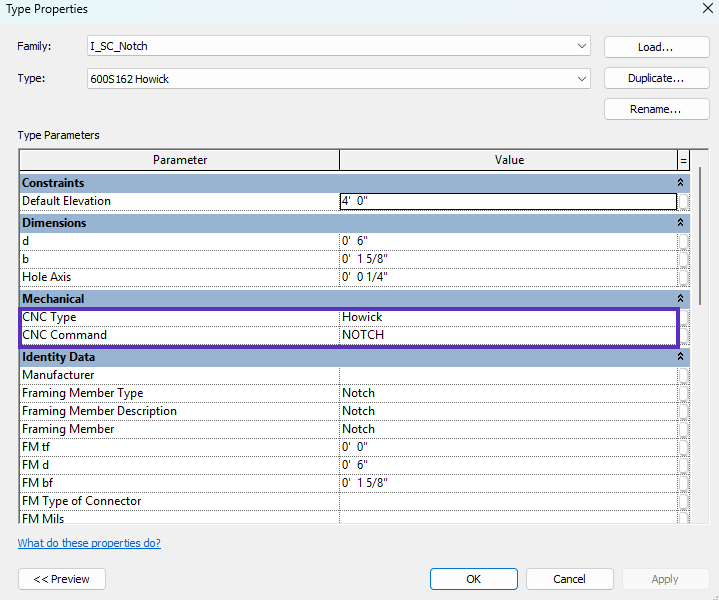
Each type contains parameter values designed for a specific CNC brand:
{% hint style="danger" %}
**Warning**: Do not change the CNC Type
{% endhint %}
{% hint style="info" %}
**Note**: if the required notch punch name is different from the default NOTCH or you have a specific notch tool name for separate notch cuts, you can change the **CNC Command** parameter value.
The value you enter will appear in the exported CNC file.
{% endhint %}
### 3. Create new type
The default sizes are:
* Imperial: **3 1/2"** (web) x **1 5/8"** (flange)
* Metric: **89mm** (web) x **50mm** (flange)
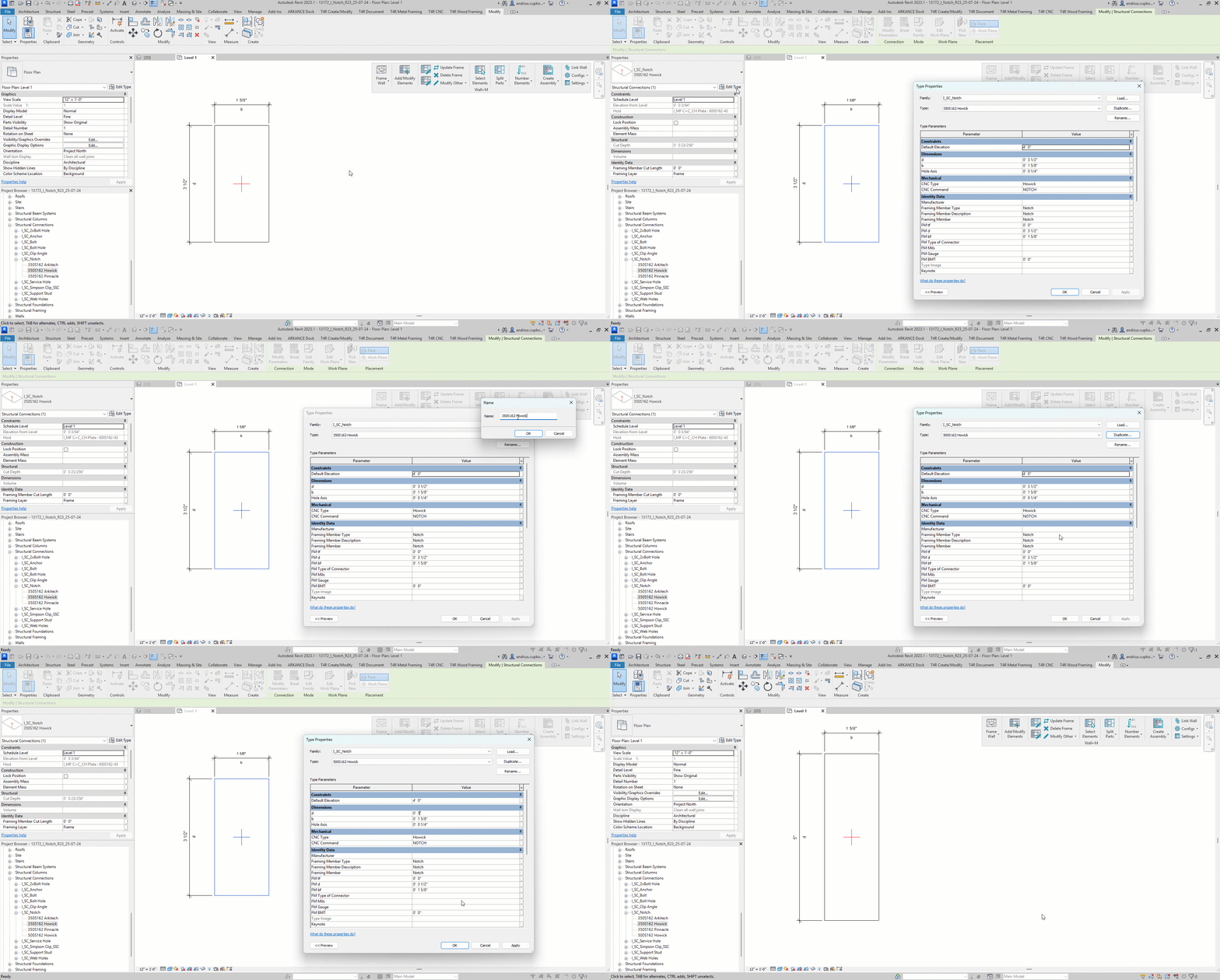
If you need a new size, follow the steps:
1. **Duplicate** the family type
2. **Rename** to the appropriate size
3. Change **d** and/or **bf** parameters in the type parameters
4. Click **OK**:
{% hint style="warning" %}
**Recommendation**: the notch hole size should match your stud profile. For example, if your stud is 600S162 (6" web x 1 5/8" flange), the Notch family type should have these type parameter values:
d = 0' 6"
bf = 0' 1 5/8"
{% endhint %}
## Insert manually
### 1. Drag and drop the type
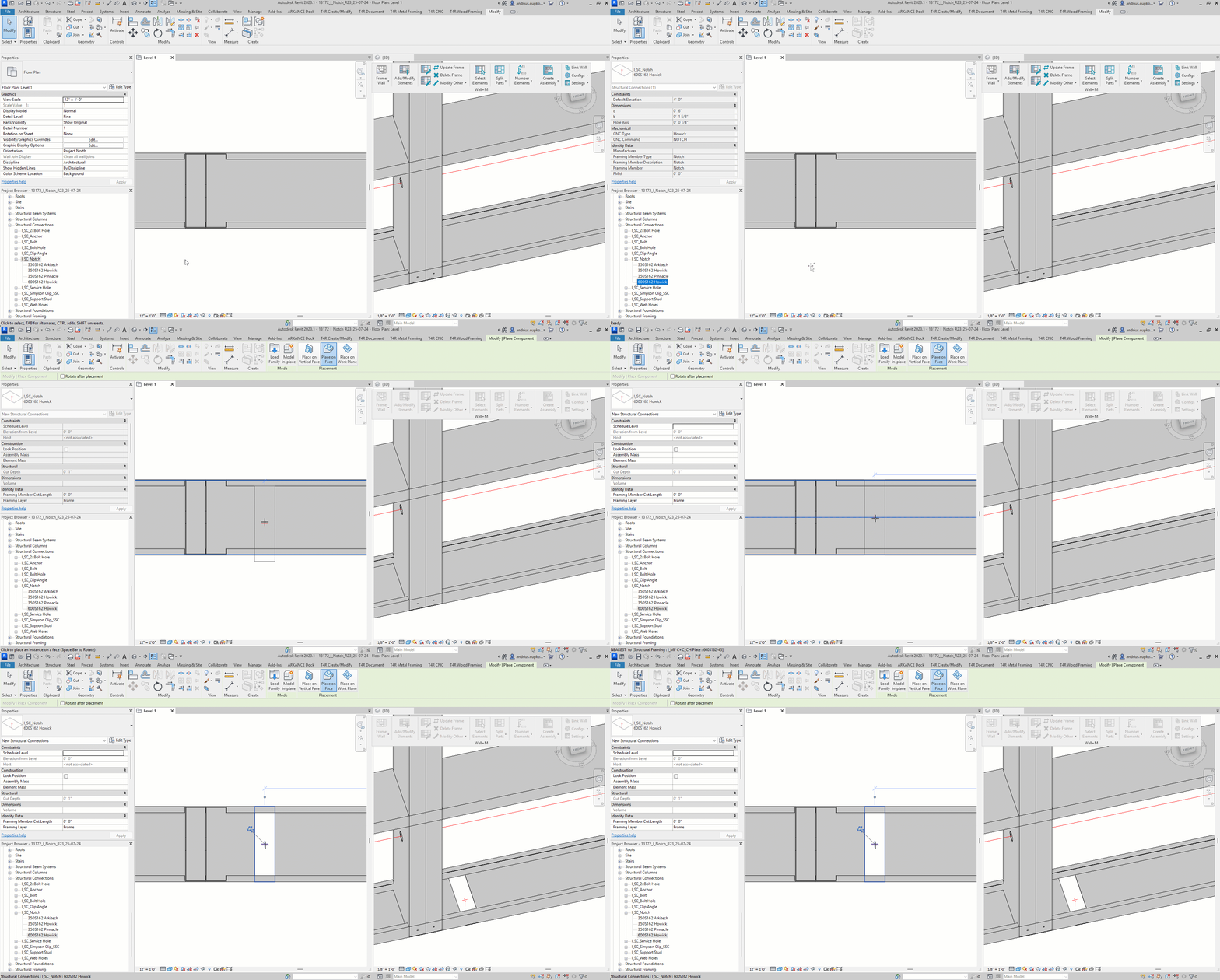
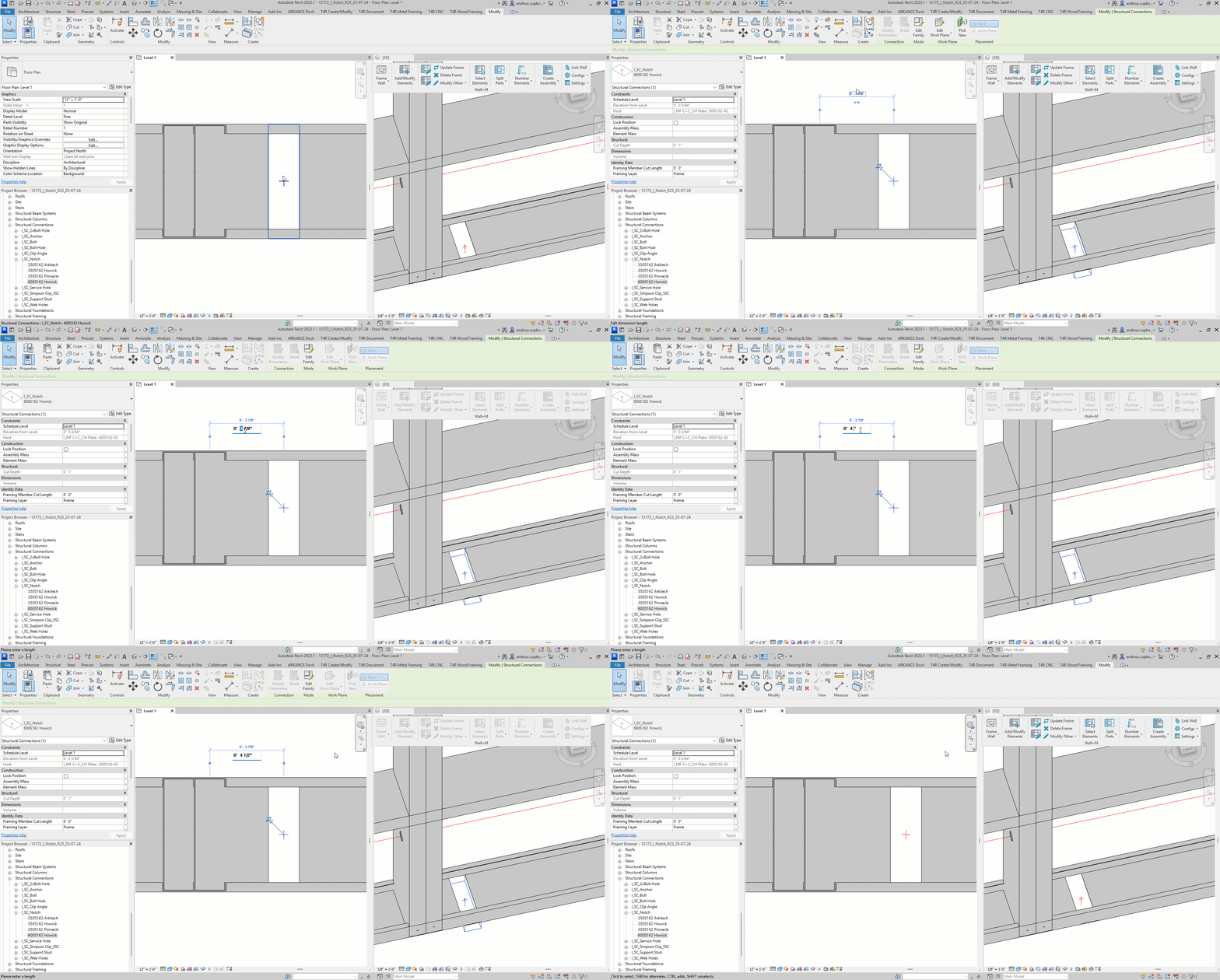
1. Open a **plan view** showing the track component you want to cut
2. **Drag** the family type from the **project browser**
3. **Insert** the notch onto a selected track:
{% hint style="info" %}
**Note**: the Notch family is a **face-based** family and the selected **stud** or **track** will be the **host**.
{% endhint %}
{% hint style="info" %}
**Tip**: if you're having issues placing the family, try hiding the wall temporarily.
{% endhint %}
4. Adjust the notch position in the stud or track:
### 2. Cut a custom-sized hole
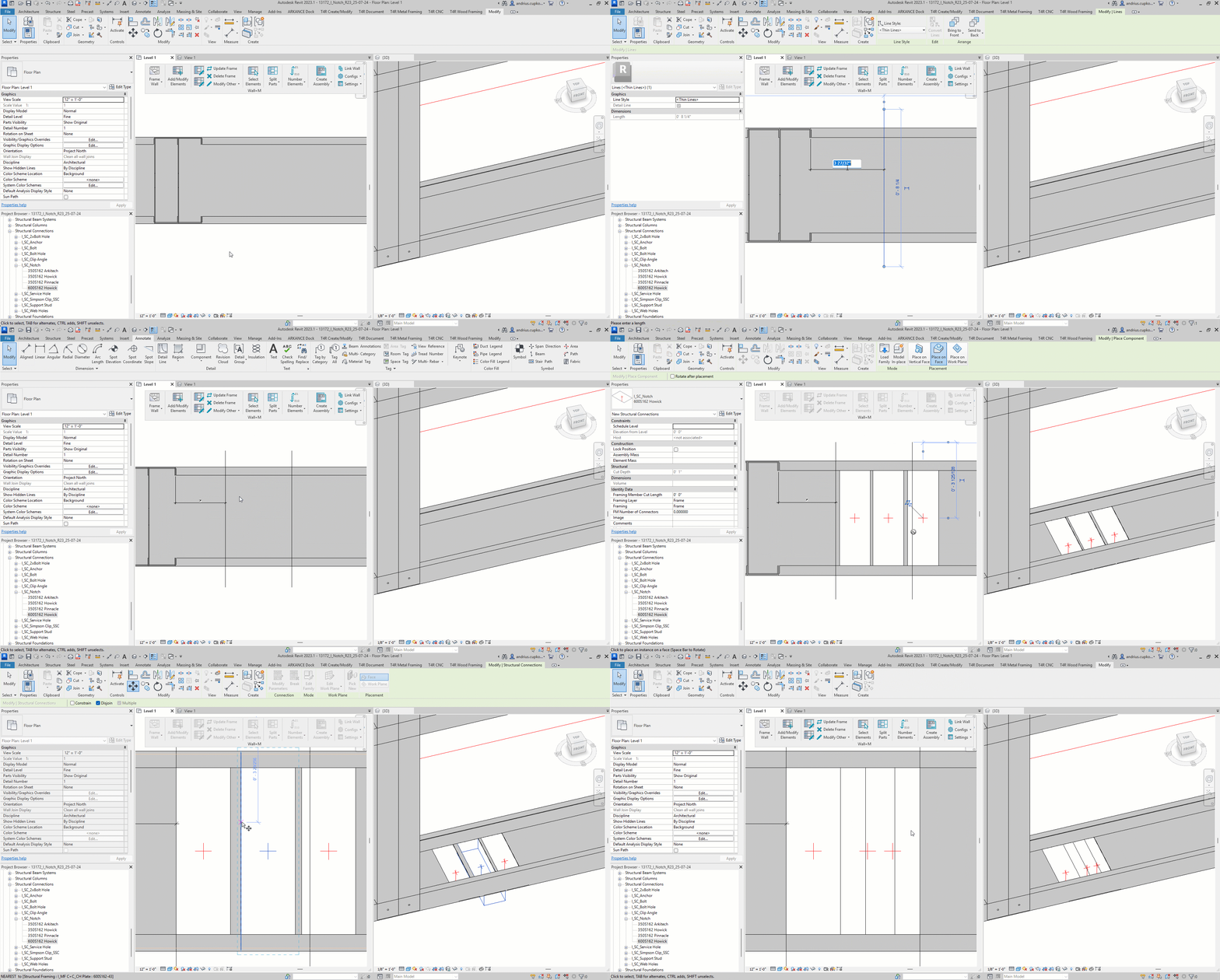
If you need to create a **hole** in a track of a **custom size**, you'll need to place **multiple notch instances** adjacent to each other.
Some notches may **overlap** - that's because the notch punch has a certain size that is already set up in your CNC machine.
For example, if your notch size is **1 5/8"** but you need a **4"** hole, you'll need to insert three notches and some will overlap:
1. In the **plan** view, draw the boundaries of the 4" hole on the track (recommended)
2. **Insert** holes
3. Align the holes with the boundaries using **Move** tool
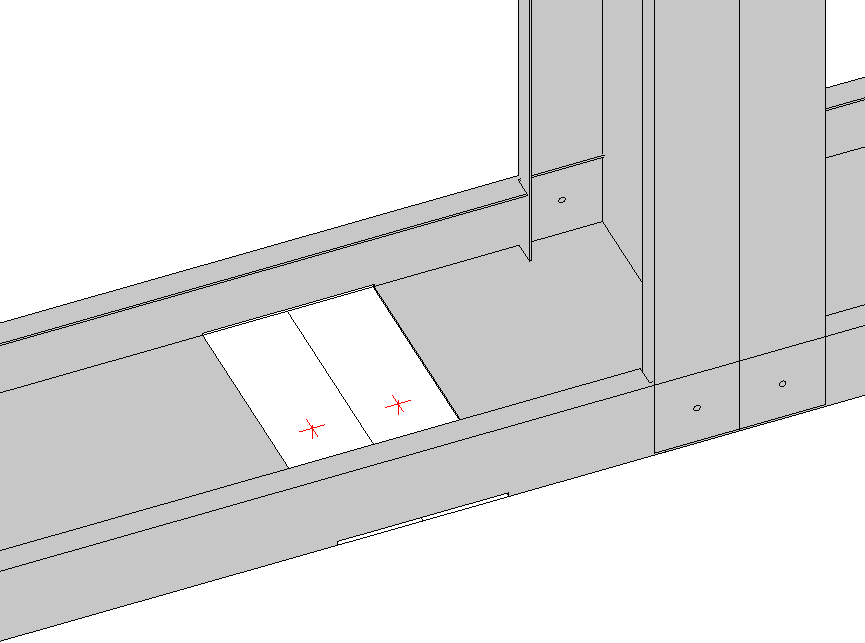
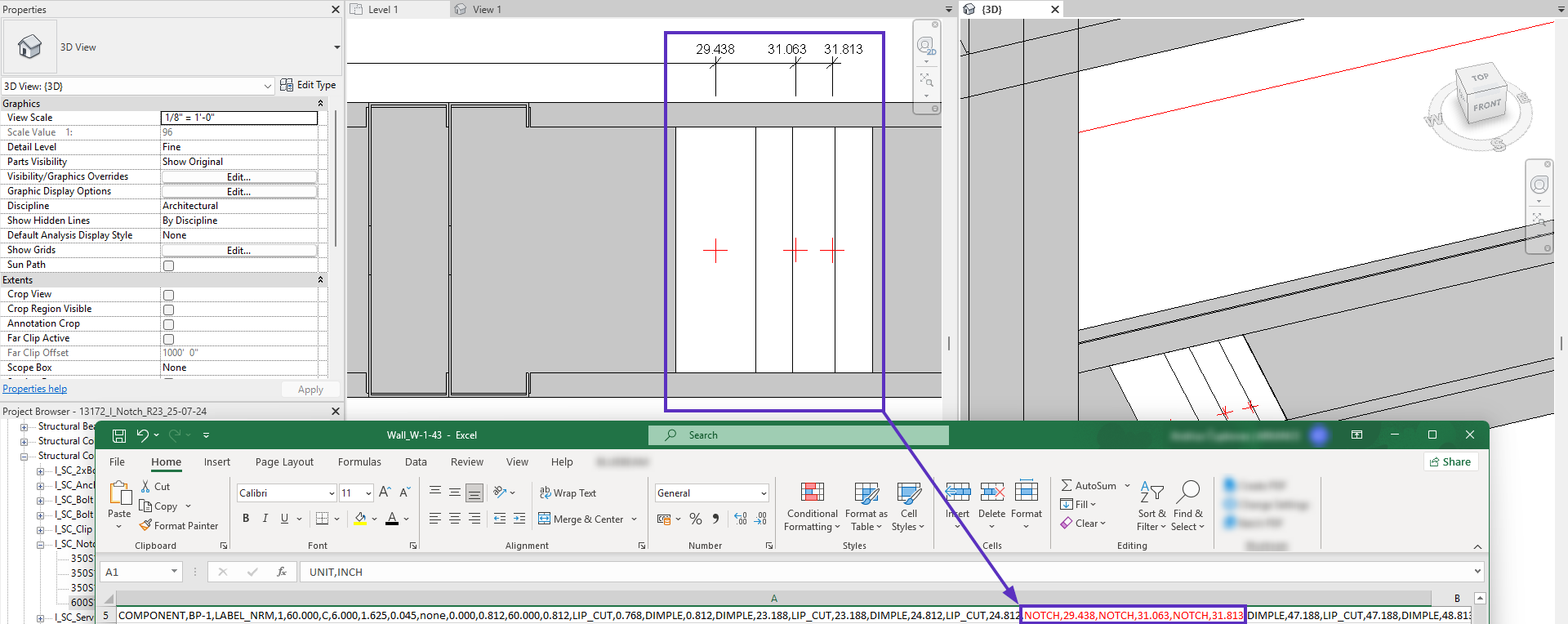
In the exported CNC file, the notch command locations on tracks will match the red crosses at the centers of the family instances:
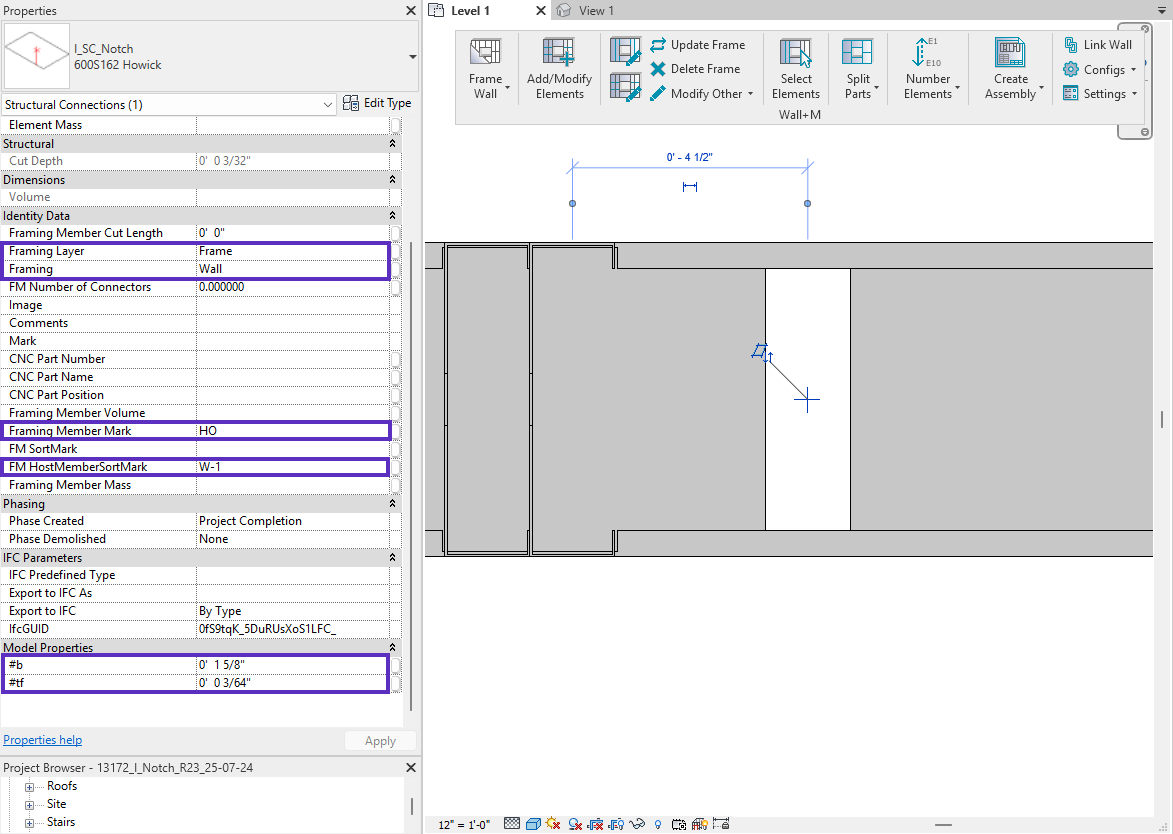
### 3. Adjust the instance parameter values
Adjust these parameters for each inserted notch
* Framing Layer = Frame
* Framing = Wall
* Framing Member Mark = any combination of letters (e.g. HO)
* FM HostMemberSortMark = \[instance **Mark** parameter value of the framing **host wall**]
* \#bf = **bf** (flange) type parameter of the notch host track (C+C\_CH Plate)
* \#tf = **tf** (thickness) type parameter of the notch host track (C+C\_CH Plate)
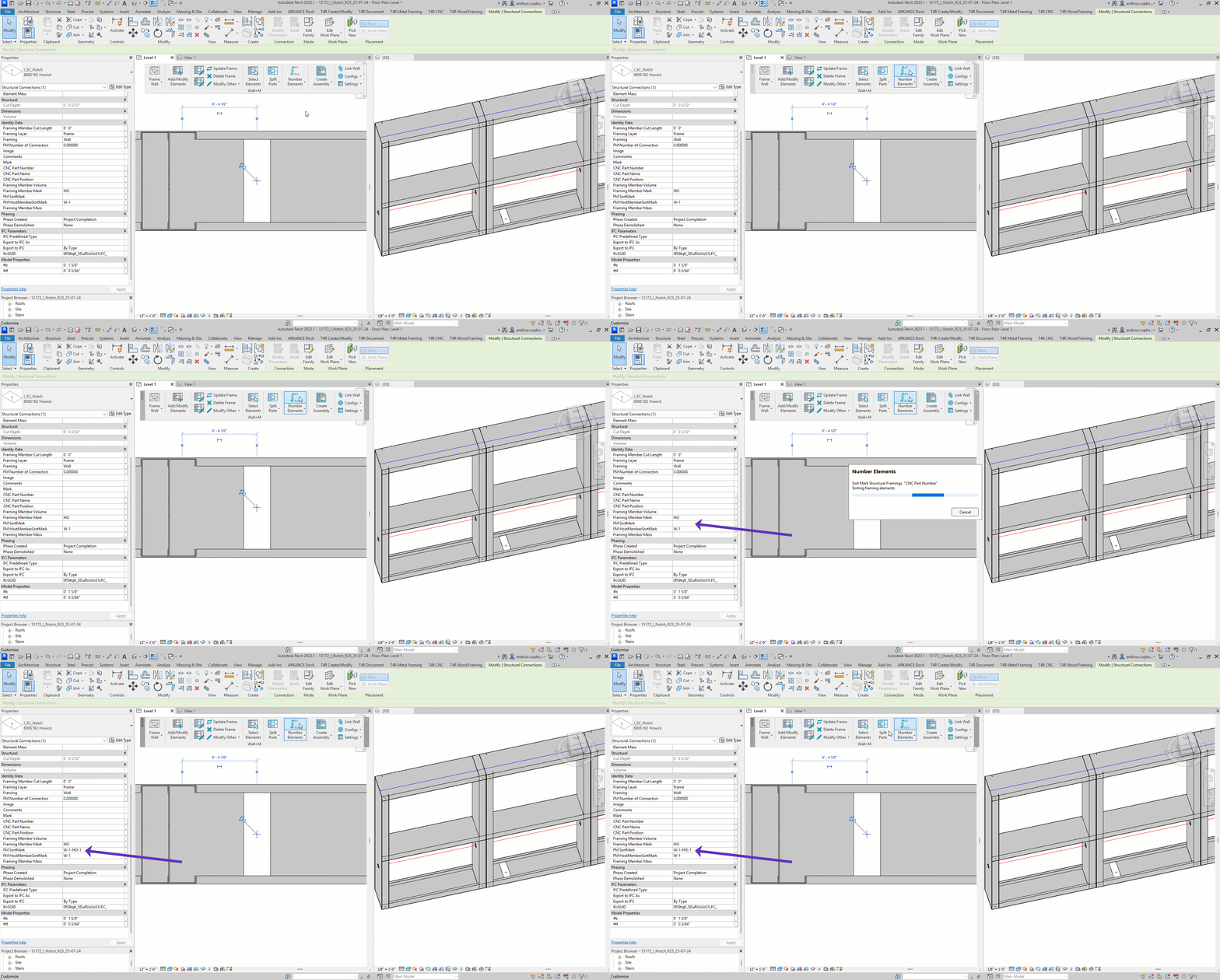
### 4. Number elements
1. Navigate to **Wall+M**
2. Click on **Number Elements**
3. This command will input the data for the **FM Sort Mark** parameter:
{% hint style="danger" %}
**Warning**: Number Elements command will renumber all **Structural Framing (studs, tracks, etc)** and **Structural Connections (angles, anchors, etc)** in the entire project.
If you don't want to renumber all other elements too, you can enter the values into **FM Sort Mark** manually.
{% endhint %}
***
{% hint style="info" %}
If you can't find the answers you're looking for, please [contact our support team](https://helpdesk.besmart.software/support/tickets/new).
{% endhint %}
---
# Agent Instructions
This documentation is published with GitBook. GitBook is the documentation platform designed so that both humans and AI agents can read, navigate, and reason over technical content effectively. Learn more at gitbook.com.
## Querying This Documentation
If you need additional information that is not directly available in this page, you can query the documentation dynamically by asking a question.
Perform an HTTP GET request on the current page URL with the `ask` query parameter, and the optional `goal` query parameter:
```
GET https://docs.besmart.software/3d-modeling-and-design/metal-framing/faq/notches-lip-cuts-and-swages/how-to-cut-a-separate-notch-in-a-stud-or-track.md?ask=&goal=
```
`ask` is the immediate question: it should be specific, self-contained, and written in natural language.
`goal` is optional and describes the broader end goal you are ultimately trying to accomplish on behalf of the user. GitBook uses it to tailor the answer towards what is most useful for that goal.
The response will contain a direct answer to the question and relevant excerpts and sources from the documentation.
Use this mechanism when the answer is not explicitly present in the current page, you need clarification or additional context, or you want to retrieve related documentation sections.