> For the complete documentation index, see [llms.txt](https://docs.besmart.software/llms.txt). Markdown versions of documentation pages are available by appending `.md` to page URLs; this page is available as [Markdown](https://docs.besmart.software/3d-modeling-and-design/metal-framing/faq/notches-lip-cuts-and-swages/how-to-cut-notches-at-the-end-studs-with-top-bottom-plates.md).
# How to cut Notches at the End Studs with Top/Bottom Plates?
## 1. Modify Settings
1. Go to **Framing Configurations** > **Modify Settings**
2. Scroll down and check the box **Automatically Switch Cuts**
3. Click **Save** to close the dialogue
{% hint style="info" %}
**Note**: this guide applies to **Wall+M** Framing Configurations.
{% endhint %}
{% hint style="warning" %}
Make sure to use the correct **Structural Framing** families.
Metric:
* **M\_MF C+C\_CH Stud** - for vertical elements (studs, king studs, cripples, trimmers, etc.)
* **M\_MF C+C\_CH Plate** - for horizontal elements (plates, bridging/blocking, headers, sills, etc.)
Imperial:
* **I\_MF C+C\_CH Stud** - for vertical elements (studs, king studs, cripples, trimmers, etc)
* **I\_MF C+C\_CH Plate** - for horizontal elements (plates, bridging/blocking, headers, sills, etc.)
[Learn more](https://www.youtube.com/watch?v=jyutWz2FmK4) about the Metal Framing families.
{% endhint %}
## 2. Choose the reversed cut type for Top and/or Bottom Plate
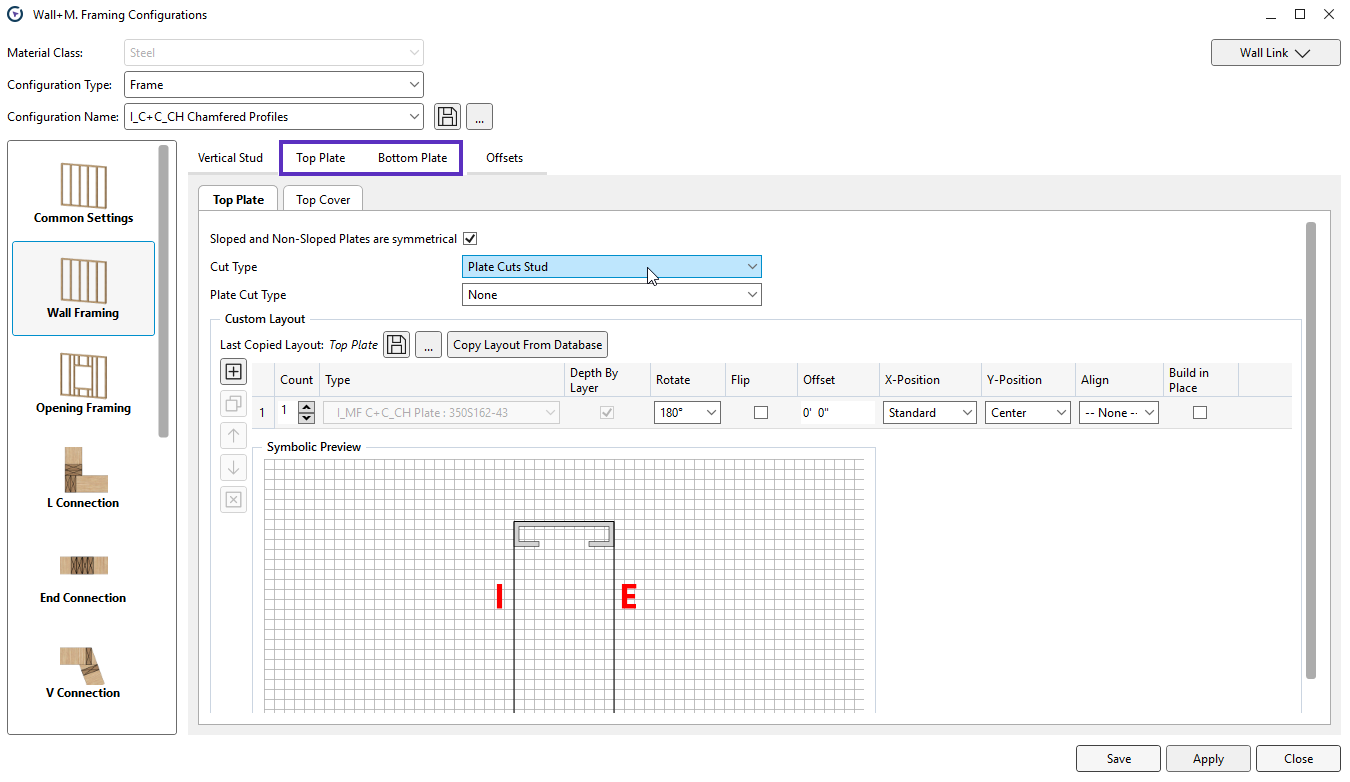
1. Go back to the **Framing Configurations** dialogue.
2. Go to **Wall Framing**
3. Choose the tab **Top Plate** and/or **Bottom Plate**
4. Go to **Cut Type** and choose **Plate Cuts Stud**
## 3. Edit the plate family
### 3.1 Open the C+C\_CH Plate family
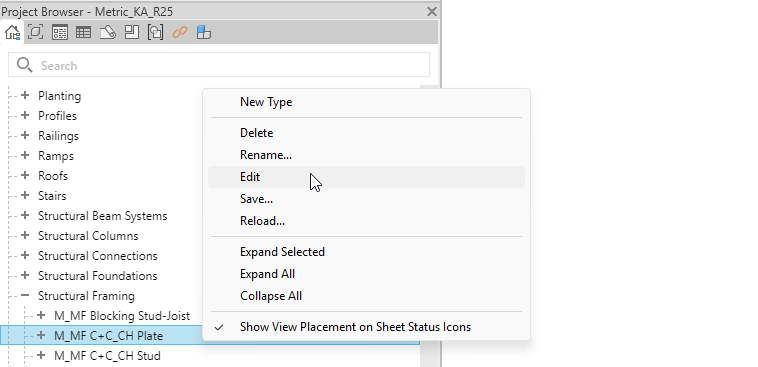
1. Go to the **project browser** > **Families** > **Structural Framing** category
2. Find the **M\_MF C+C\_CH Plate** (Metric) or **I\_MF C+C\_CH Plate** (Imperial).
3. Right-click on the family and choose **Edit**:
### 3.2 Modify the Butt tf parameter formula
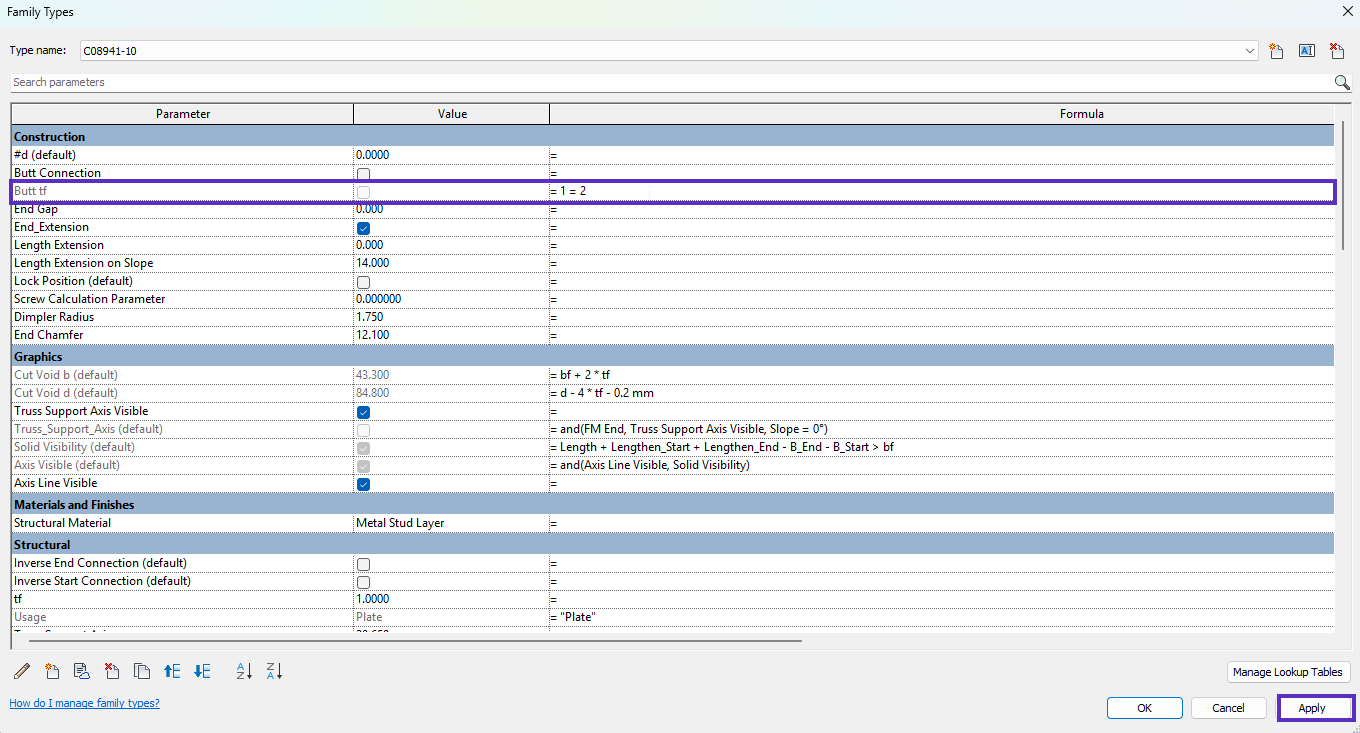
1. Go to the **Family Types** dialogue
2. Replace the existing **Butt tf** parameter formula with the new value:
```
1=2
```
3. Click **Apply**
### 3.3 Create a new parameter
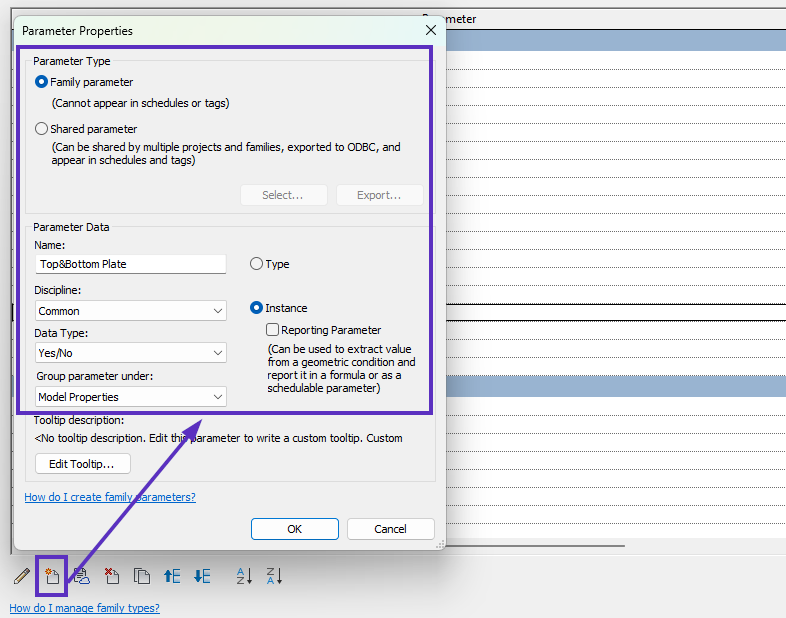
Create a new **Instance**, **Yes/No** parameter **Top\&Bottom** **Plate** and group it under **Model Properties**
### 3.4 Modify the existing formulas
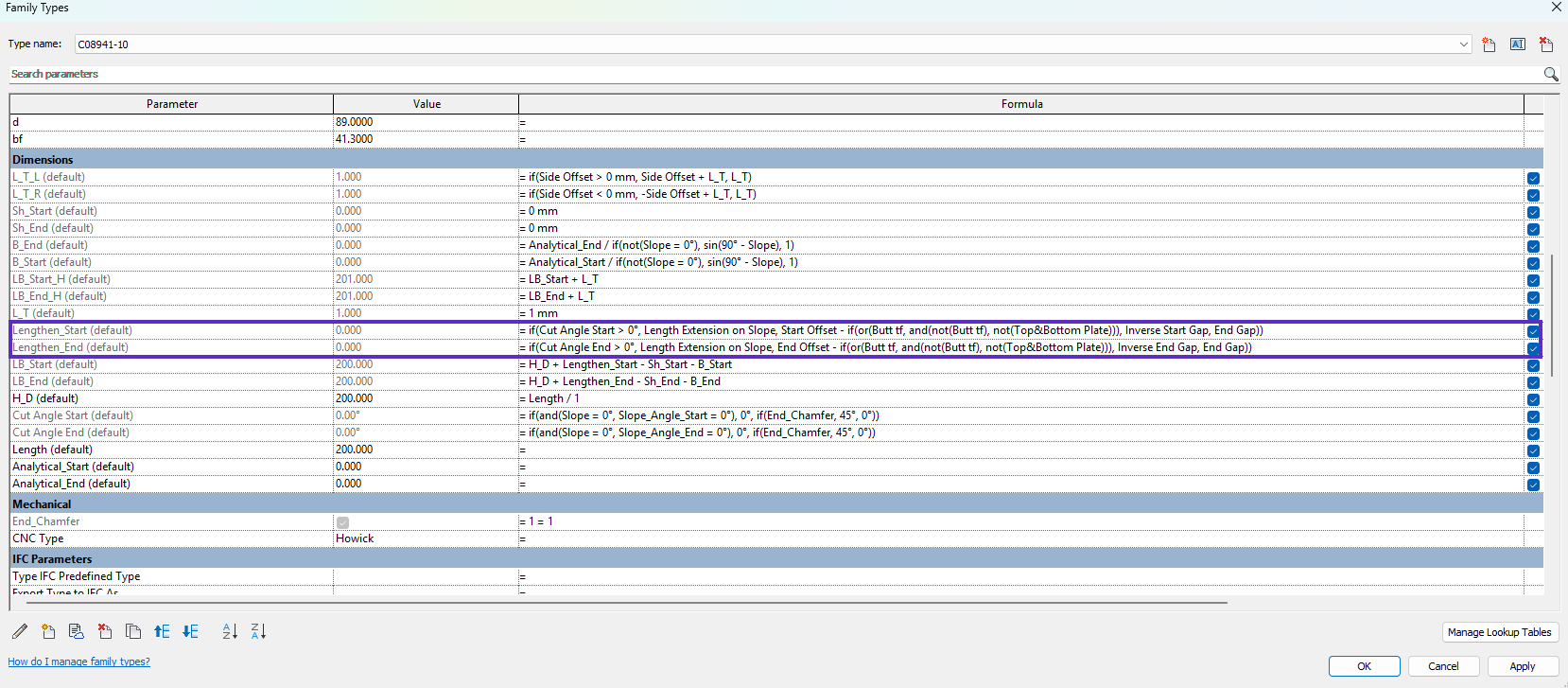
1. In the **Lenghten\_Start** parameter, **replace** the existing formula by **copying** **the formula below****:**
```
if(Cut Angle Start > 0°, Length Extension on Slope, Start Offset - if(or(Butt tf, and(not(Butt tf), not(Top&Bottom Plate))), Inverse Start Gap, End Gap))
```
2. Iin the **Lenghten\_End** parameter, **replace** the existing formula by **copying** **the formula below**:
```
if(Cut Angle End > 0°, Length Extension on Slope, End Offset - if(or(Butt tf, and(not(Butt tf), not(Top&Bottom Plate))), Inverse End Gap, End Gap))
```
How the two formulas should look like
3. Click **Apply**
4. Click **OK**
## 4. Load the family back into the project
1. Click **Load into the Project and Close**
2. In the project, click **Overwrite the Existing Version**
## 5. Frame wall
1. Select the walls
2. Click **Frame Wall**
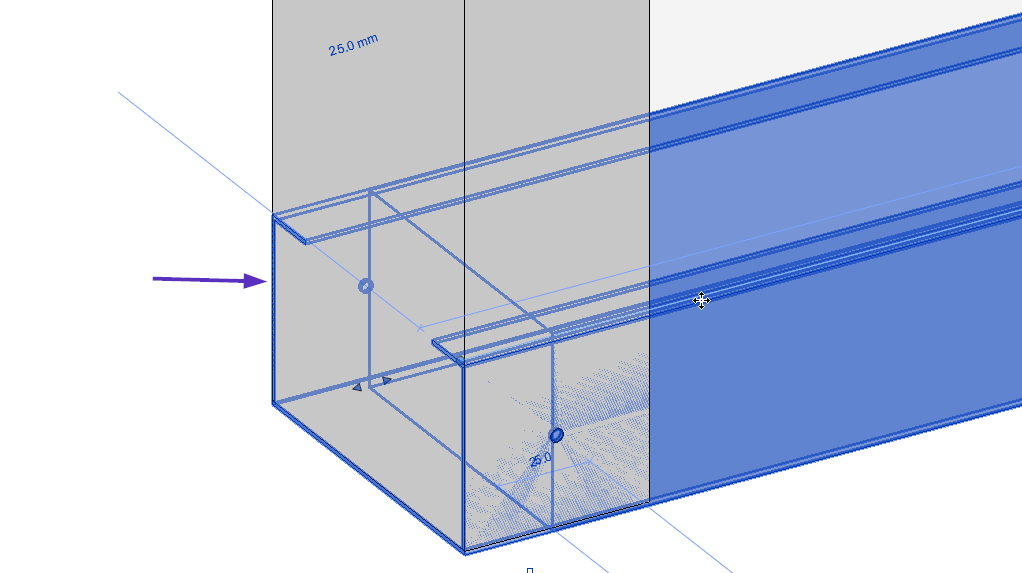
**Top/Bottom Plates** now extend to the end of the **Studs**:
{% hint style="success" %}
**Notch in the stud** **may not be visible** in Revit, but the **NOTCH** **command** **will appear in the CSV file**.
{% endhint %}
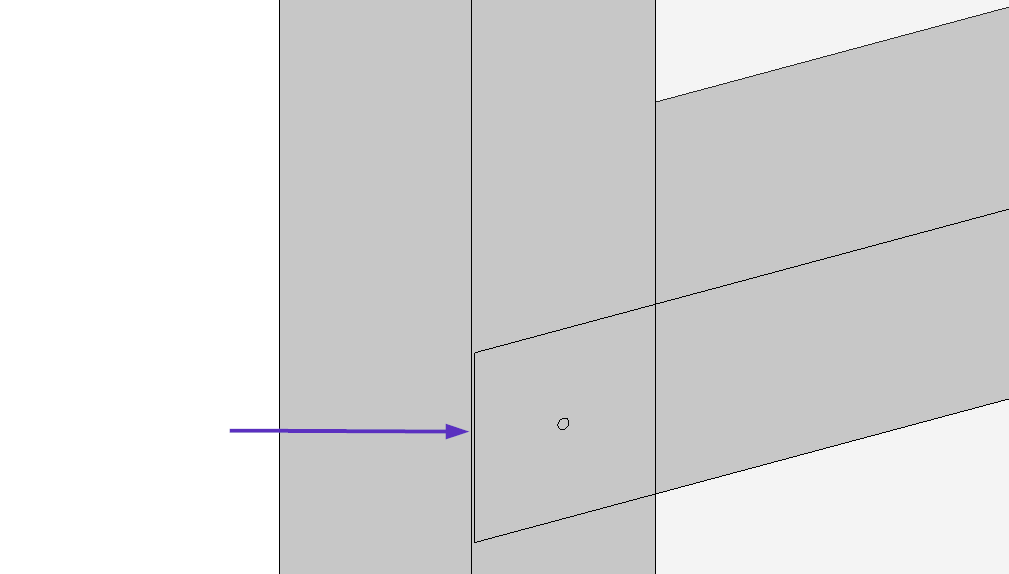
If the **Blocking/Nogging** also has a **reverse connection** with the stud**, the plate** **will not extend** and **will not create the Notch** inside the stud:
{% hint style="warning" %}
**Note**: if you use **reversed connections** for the opening **Header** and **Sill** plates, the **Notches** will also appear in the **King Studs**.
[Learn more](/3d-modeling-and-design/metal-framing/faq/notches-lip-cuts-and-swages/how-to-switch-stud-and-plate-connections-cuts.md) about the difference between default and reversed connections.
{% endhint %}
## 6. Setup the exporter
### 6.1 Set the Default CNC Type
1. Go to the **CNC Metal Exporter**
2. Click on **Set the Default CNC Type**
3. Choose one of four configurations (for **Arkitech**, **Howick** or **Pinnacle** machine)
4. Click **OK**
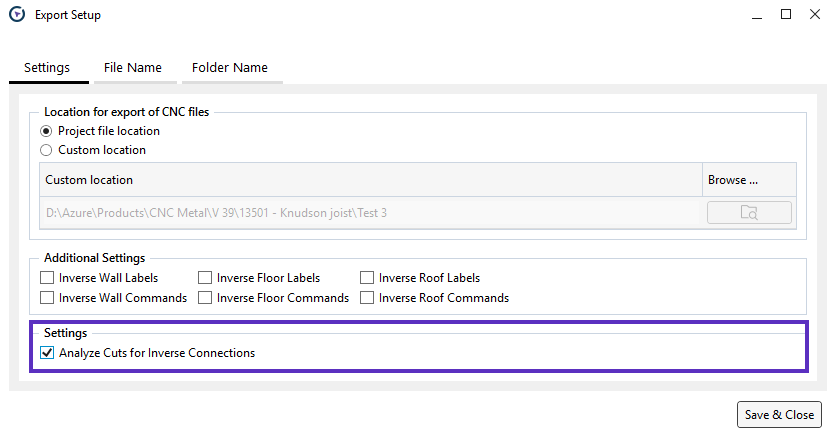
### **6.2** Turn on the cut analysis
1. Go to the **CNC Metal Exporter**
2. **Export Setup**
3. Tick the box **Analyze Cuts for Inverse Connections**
4. Click **Save & Close**
{% hint style="info" %}
[Learn more](https://docs.besmart.software/design-data-management-and-exchange/cnc-exporters/cnc-metal-exporter/revit-add-in/features#export-setup) about the **Export Setup**.
{% endhint %}
## 7. Export files
1. Open the menu in the **CNC Metal Exporter**
2. Select **walls/floors/roofs**
3. Click **Export Frames**
***
{% hint style="info" %}
**Note**: CNC Metal Exporter is not included in the Metal Collection.
[Learn more](/design-data-management-and-exchange/cnc-exporters/cnc-metal-exporter.md) about the features of CNC Metal Exporter.
{% endhint %}
{% hint style="info" %}
If you can't find the answers you're looking for, please [contact our support team](https://helpdesk.besmart.software/support/tickets/new).
{% endhint %}
---
# Agent Instructions
This documentation is published with GitBook. GitBook is the documentation platform designed so that both humans and AI agents can read, navigate, and reason over technical content effectively. Learn more at gitbook.com.
## Querying This Documentation
If you need additional information that is not directly available in this page, you can query the documentation dynamically by asking a question.
Perform an HTTP GET request on the current page URL with the `ask` query parameter, and the optional `goal` query parameter:
```
GET https://docs.besmart.software/3d-modeling-and-design/metal-framing/faq/notches-lip-cuts-and-swages/how-to-cut-notches-at-the-end-studs-with-top-bottom-plates.md?ask=&goal=
```
`ask` is the immediate question: it should be specific, self-contained, and written in natural language.
`goal` is optional and describes the broader end goal you are ultimately trying to accomplish on behalf of the user. GitBook uses it to tailor the answer towards what is most useful for that goal.
The response will contain a direct answer to the question and relevant excerpts and sources from the documentation.
Use this mechanism when the answer is not explicitly present in the current page, you need clarification or additional context, or you want to retrieve related documentation sections.