# Adjust Layout by Searching for other Elements

Details can be inserted not only by using Layout and Array axis rules, but also a smarter way: insert Elements if certain conditions are met. For example, at beam intersections, proximity to other elements, etc.

{% hint style="info" %}
**NOTE:** **Adjust Layout by Searching for other Elements** is available for all compatible categories except Curtain Panels and Line-based Generic Model. Also, it can be used only when inserting Point-based families.
{% endhint %}

**Searching Rule Class:**

<table data-view="cards"><thead><tr><th align="center"></th><th data-hidden data-card-target data-type="content-ref"></th></tr></thead><tbody><tr><td align="center">Virtual Intersections</td><td><a href="adjust-layout-by-searching-for-other-elements/virtual-intersections">virtual-intersections</a></td></tr><tr><td align="center">Real Intersections</td><td><a href="adjust-layout-by-searching-for-other-elements/real-intersections">real-intersections</a></td></tr><tr><td align="center">Wall/Part Joins</td><td><a href="adjust-layout-by-searching-for-other-elements/wall-joins">wall-joins</a></td></tr><tr><td align="center">Structural Framing Joins</td><td><a href="adjust-layout-by-searching-for-other-elements/structural-framing-joins">structural-framing-joins</a></td></tr><tr><td align="center">Top &#x26; Bottom element Faces</td><td><a href="adjust-layout-by-searching-for-other-elements/top-and-bottom-element-faces">top-and-bottom-element-faces</a></td></tr><tr><td align="center">Floor Perimeter</td><td><a href="adjust-layout-by-searching-for-other-elements/floor-perimeter">floor-perimeter</a></td></tr><tr><td align="center">Column &#x26; Structural Joins</td><td><a href="adjust-layout-by-searching-for-other-elements/column-and-structural-joins">column-and-structural-joins</a></td></tr><tr><td align="center">T &#x26; B/ L &#x26; R Connections</td><td><a href="adjust-layout-by-searching-for-other-elements/t-and-b-l-and-r-connections">t-and-b-l-and-r-connections</a></td></tr><tr><td align="center"></td><td></td></tr></tbody></table>

***

**Search in Project** - some 'Searching Rule Class' options have the option to search in Current or Linked Project. Select one of the options in the drop-down.

<div align="left"><figure><img src="https://239424168-files.gitbook.io/~/files/v0/b/gitbook-x-prod.appspot.com/o/spaces%2FqtUsszuAWXIZhQhrvjnb%2Fuploads%2FVtHiow4oiW9dFYiIdFE0%2Fsearch%20in%20project.png?alt=media&#x26;token=5a1273e4-3aad-4355-819f-a5679aa3accd" alt=""><figcaption><p>Search in Project</p></figcaption></figure></div>

**Searching Category** - some 'Searching Rule Class' options have the option to search for different Category elements.

<div align="left"><figure><img src="https://239424168-files.gitbook.io/~/files/v0/b/gitbook-x-prod.appspot.com/o/spaces%2FqtUsszuAWXIZhQhrvjnb%2Fuploads%2FxQiKvZdKnJMIfgH2lxss%2Fsearching%20categoy.png?alt=media&#x26;token=7a2aec35-ffcf-4998-b3a2-92e97a292c8d" alt=""><figcaption><p>Searching categories</p></figcaption></figure></div>

If a Category is selected, you can search for a particular Family and its Types:

<div align="left"><figure><img src="https://239424168-files.gitbook.io/~/files/v0/b/gitbook-x-prod.appspot.com/o/spaces%2FqtUsszuAWXIZhQhrvjnb%2Fuploads%2FilRQbEyU7AyyRMVqrl9I%2Ffamily%20adjust%20layout%20rule.png?alt=media&#x26;token=a3865a17-31ee-4ecd-8b71-00e9da4ecb03" alt=""><figcaption><p>Family and Type</p></figcaption></figure></div>

Select particular **Family and Type from Browser** or from drop-down menu.

**Use all Types** - tick ON if you want to apply this rule to all Types of selected Family.

**Additional Filter** - filter selected Types by selected filtering rule.

***

**Searching Rule Name** - specify searching direction or type of element joints. Available options depend on what you select in Searching Rule Class. If Searching Rule Class was Wall joins, you will be able to select of a list of options, that are explained in the image below:

<figure><img src="https://239424168-files.gitbook.io/~/files/v0/b/gitbook-x-prod.appspot.com/o/spaces%2FqtUsszuAWXIZhQhrvjnb%2Fuploads%2FLIVqlXgoYk12zgouiH2l%2Fgitbook%202.jpg?alt=media&#x26;token=5ce42ba7-56a1-4fca-80a8-9b1b799e01a4" alt=""><figcaption><p>Searching rule name for wall joins</p></figcaption></figure>

***

**Cut Type**

<div align="left"><figure><img src="https://239424168-files.gitbook.io/~/files/v0/b/gitbook-x-prod.appspot.com/o/spaces%2FqtUsszuAWXIZhQhrvjnb%2Fuploads%2FU28gDZJaKJETnflW1y5b%2Fcut%20type.png?alt=media&#x26;token=296c5323-34eb-4bbe-96da-af22cf12d8a4" alt=""><figcaption></figcaption></figure></div>

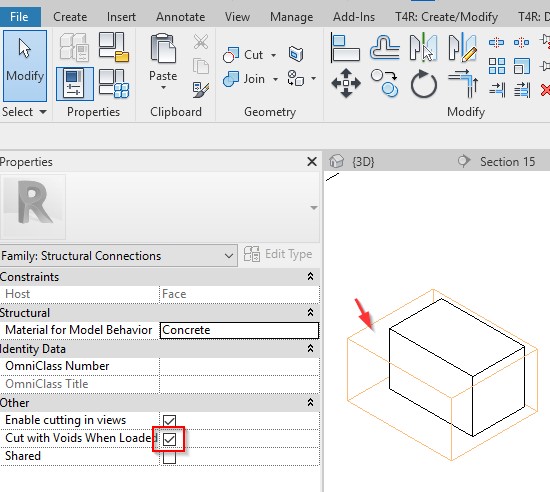
To use this function, you have to have a Void inside the Family and **Cut with Voids When Loaded** should be checked

<div align="left"><img src="https://239424168-files.gitbook.io/~/files/v0/b/gitbook-x-prod.appspot.com/o/spaces%2FqtUsszuAWXIZhQhrvjnb%2Fuploads%2FZRvb3g9XgnsqnCP9V2gR%2F6.jpeg?alt=media" alt=""></div>

**Cut Connected Element** - will cut element that you were searching for.

<div align="left"><figure><img src="https://239424168-files.gitbook.io/~/files/v0/b/gitbook-x-prod.appspot.com/o/spaces%2FqtUsszuAWXIZhQhrvjnb%2Fuploads%2FS8PS06OYdL7YWOjMEmGT%2FCut%20Connected.png?alt=media&#x26;token=dc6222ec-9764-4245-a739-5a059704c4fb" alt=""><figcaption></figcaption></figure></div>

**Cut Detail** - will cut your inserted Family with connected Family

<div align="left"><figure><img src="https://239424168-files.gitbook.io/~/files/v0/b/gitbook-x-prod.appspot.com/o/spaces%2FqtUsszuAWXIZhQhrvjnb%2Fuploads%2FJTzTdCpXLF1GBm2v3LAm%2Fcut%20detail.png?alt=media&#x26;token=d56eb5ea-a875-49c6-83be-757f60b274e5" alt=""><figcaption></figcaption></figure></div>

**Cut Connected Element Host** - use, for example, when you want to insert your family based on the location of another nearby family and cut its host at the same time. In the picture below, a corbel is placed on the Wall at the location of the plate, which is hosted on a Double Tee slab. So, DT is cut.

<div align="left"><figure><img src="https://239424168-files.gitbook.io/~/files/v0/b/gitbook-x-prod.appspot.com/o/spaces%2FqtUsszuAWXIZhQhrvjnb%2Fuploads%2FEtrCSwro4VM6HwPSY12e%2Fcut%20element%20host.png?alt=media&#x26;token=123aef71-1214-4181-9ec3-e864fb0409b8" alt=""><figcaption></figcaption></figure></div>

**Cut Everything with Detail** - will cut all intersecting elements

**Cut Host and Connected Element with Nested Detail Solids** - will cut Host and Connected element with solid details

**Cut all Except Host and Connected Element** - will cut all intersecting elements except Host and Connected Element

![](https://239424168-files.gitbook.io/~/files/v0/b/gitbook-x-prod.appspot.com/o/spaces%2FqtUsszuAWXIZhQhrvjnb%2Fuploads%2F30fcPtyDLZzu4gpBJ2Qa%2F11.png?alt=media)


---

# Agent Instructions: Querying This Documentation

If you need additional information that is not directly available in this page, you can query the documentation dynamically by asking a question.

Perform an HTTP GET request on the current page URL with the `ask` query parameter:

```
GET https://docs.besmart.software/3d-modeling-and-design/smart-connections/configuration-window/adjust-layout-by-searching-for-other-elements.md?ask=<question>
```

The question should be specific, self-contained, and written in natural language.
The response will contain a direct answer to the question and relevant excerpts and sources from the documentation.

Use this mechanism when the answer is not explicitly present in the current page, you need clarification or additional context, or you want to retrieve related documentation sections.